SHENZHEN, CN / ACCESS Newswire / July 6, 2026 / A Sony camera card can hold work that is hard to replace: client photos, vlog footage, interview clips, travel videos, or a full day of shooting. When files disappear, the next step matters more than another quick check in the camera menu.
If you need Sony camera recovery, stop using the card first. Deleted photos and videos are often not erased immediately. They may still exist on the storage card until new data overwrites them.
Stop using the camera card right away
When videos or images go missing, stop recording immediately. Do not take test photos, shoot new clips, or format the card again. If your Sony camera shows a card error, or your computer asks to format the card, do not confirm the prompt before recovery.
Remove the memory card from the camera and keep it aside. If you need to continue shooting, switch to another card. This helps protect the missing files from being overwritten.
Why Sony camera files get lost
Photographers and vloggers may need photo recovery or video recovery from a Sony camera for several reasons:
– Accidental deletion while reviewing files
– Formatting the SD card before backup
– Interrupted transfer from camera to computer
– Power loss while recording
– Memory card errors or corrupted file systems
– Using the same card across different devices
– Removing the card while the camera is still writing data
For video creators, the risk can be higher because video files are large. A long vlog, interview, wedding clip, or travel video takes time to save correctly. If recording or transfer is interrupted, the file may become missing, incomplete, or unreadable.
Check the card before recovery
Before using recovery software, make sure the problem is not a weak connection. Try another card reader, USB port, or cable. If possible, check the card on another computer.
If the card is detected but the files are missing, do not copy anything new to it. If the card is not detected at all, avoid forcing repeated operations. A physically damaged card may need professional help.
A safe Sony camera recovery workflow
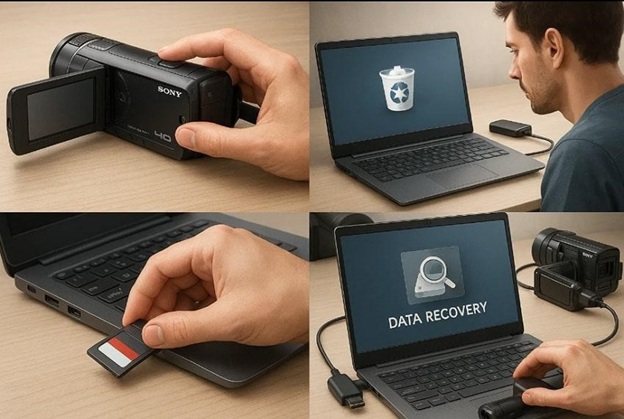
A careful recovery process usually looks like this:
1. Remove the memory card from your Sony camera.
2. Connect the card to your computer with a reliable card reader.
3. Open a camera recovery tool and select the camera card.
4. Scan for deleted, formatted, or lost files.
5. Preview recoverable photos and videos when possible.
6. Save the recovered files to your computer or another external drive.
Do not save recovered files back to the same card during recovery. That can overwrite other data that may still be recoverable.
Where Wondershare Recoverit fits
Wondershare Recoverit is designed for camera recovery, including deleted photos, lost videos, formatted cards, transfer interruptions, and memory card errors. It supports major camera brands such as Sony, Canon, Nikon, Panasonic, Fujifilm, Olympus, and GoPro, along with common image and video formats such as JPG, PNG, MP4, MOV, and more.
If you need to recover lost photos from sony camera, Recoverit can scan the camera storage card, help locate missing files, and save selected photos or videos to another location.
This makes it useful for Sony users who need image recovery after accidental deletion, photo recovery after formatting, or video recovery after a failed transfer.
How to use Recoverit for Sony camera recovery
1. Connect the Sony memory card to your computer.
Use a reliable card reader. If the card is not detected, try another reader or USB port before scanning.
2. Open Wondershare Recoverit.
Choose the Sony camera card from the available drives or external devices. Make sure you select the correct card if more than one drive is connected.
3. Start the scan.
Let Recoverit search for deleted, formatted, or lost files. For large video files or full camera cards, allow the scan to finish.
4. Filter and preview the results.
Search by file type, name, size, date, or folder path. Photographers may look for JPG, RAW, PNG, or other image files. Video creators may look for MP4, MOV, or other Sony camera video files.
5. Select the files you need.
Choose the photos, videos, or other media files you want to recover.
6. Recover to another location.
Save recovered files to your computer, an external SSD, or another safe drive. Do not save them back to the same Sony memory card.
7. Check the recovered files.
Open photos and play videos from the new location. Confirm the files are usable before formatting or reusing the original card.
Tips for better Sony video recovery results
When trying to recover deleted videos from Sony, be patient with the scan. Large video files may take longer to locate than photos. If your camera records in high-resolution formats, the scan may need more time to find complete clips.
After recovery, open the saved videos from the new location. Check playback, duration, audio, and visual quality before using the original card again.
Tips for Sony photo and image recovery
Recovered images may include JPEG files, RAW photos, or other camera-generated formats. If the shoot was important, recover everything useful first and sort the files afterward.
Do not rush to format the card until you have checked the recovered images and backed them up. A safer habit is to keep at least two copies of important shoots before clearing any camera card.
How to avoid future Sony camera data loss
You can reduce future risk with a few simple habits. Back up files after every shoot. Use reliable card readers. Eject the card safely from your computer. Avoid removing the battery or memory card while the camera is saving files.
For long vlogs or paid shoots, rotate multiple cards instead of filling one card completely. Sony camera recovery works best when you stop using the card early, scan it carefully, and recover files to a separate drive.
Company Details
Company Name: Wondershare
Contact Person: Tianyu Wu
Email: customer_service@wondershare.com
Website: https://recoverit.wondershare.com/
SOURCE: Wondershare
View the original press release on ACCESS Newswire
PALO ALTO, CA / ACCESS Newswire / September 8, 2026 / Bioz, Inc., the scientific…
VANCOUVER, BC / ACCESS Newswire / September 8, 2026 / Battery X Metals Inc. (CSE:BATX)(OTCQB:BATXF)(FSE:5YW0,…
VANCOUVER, BC / ACCESS Newswire / September 8, 2026 / BioNxt Solutions Inc. ("BioNxt" or…
Highlights:RIFT26-019 returns 2.12% REO (1) over 197.5 m, including:4.60% REO over 5.1 m, or3.15% REO…
Strong growth in core content licensing business; revenue up 12% and Adjusted EBITDA1 margins expandingUK…